---
title: Job Poster Finance Reports and Exporting Financial Data
description: Learn how job posters can generate and export finance reports on Go4 to track earnings, payments, and financial details for jobs.
---
[Skip to content](https://support.go4.io/job-poster-finance-report-and-export#main-content)
English - United States
Show submenu for translations

- [Support Home](https://50706065.hs-sites.com/support)
- [Healthcare Professionals](https://50706065.hs-sites.com/support/athletic-trainers)
- [Job Posters](https://50706065.hs-sites.com/support/job-posters)
Open main navigation
Close main navigation
- [Support Home](https://50706065.hs-sites.com/support)
- [Healthcare Professionals](https://50706065.hs-sites.com/support/athletic-trainers)
- [Job Posters](https://50706065.hs-sites.com/support/job-posters)
- English - United States
Show submenu for translations
This is a search field with an auto-suggest feature attached.
- There are no suggestions because the search field is empty.
1. [Support](https://support.go4.io/?hsLang=en-us)
2. [Job Posters](https://support.go4.io/job-posters?hsLang=en-us)
3. [Finance and Payments](https://support.go4.io/job-posters?hsLang=en-us#finance-and-payments)
# Job Poster Finance Reports and Exporting Financial Data
## Learn how to access your financial reports, review transaction history, and export financial data from your Go4 account for reconciliation, budgeting, and recordkeeping purposes.
The Finance section of your Go4 account provides visibility into your organization's financial activity, allowing you to review completed transactions, track spending, and export financial records when needed.
Whether you're reconciling expenses, preparing reports for your accounting team, or reviewing historical transactions, the Finance section serves as your centralized source for financial information related to your Go4 account.
📽️ **Watch for a quick walk-through of the Finance section on your dashboard.**
**Good to Know**
The Finance section only includes transactions processed through Go4 and can be accessed at any time through your account dashboard.
---
### Accessing Your Finance Report
To access your financial information:
1. Log in to your Go4 account.
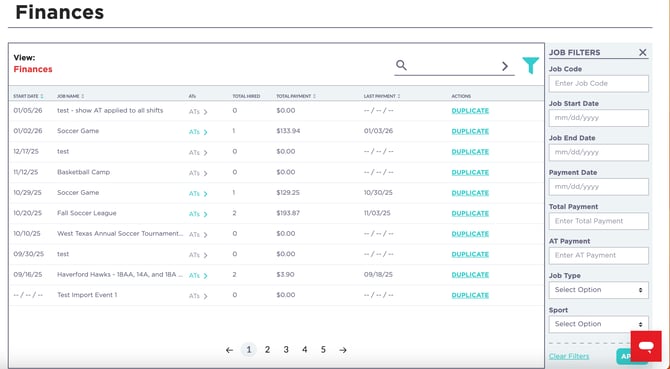
2. Navigate to the left side-bar menu and select the **Finances** section.
3. Review your transaction history and financial activity.
---
### **Understanding Your Finance Dashboard**
The Finance section provides visibility into completed financial activity associated with your account.
Depending on your account activity, you may see:
- Completed transactions
- Shift payments
- Service fees
- Transaction dates
- Payment status
- Historical spending
This information can help organizations monitor spending and maintain accurate financial records.
---
### **Exporting Financial Data**
Organizations can export financial data directly from the Finance section.
Exporting your data may be helpful for:
- Budget planning
- Expense tracking
- Internal reporting
- Accounting reconciliation
- Tax preparation
- Auditing purposes
To export your data:
1. Navigate to the **Finance** section.
2. Select the desired date range.
3. Click **Export**.
4. A report will be sent directly to your email available for download.
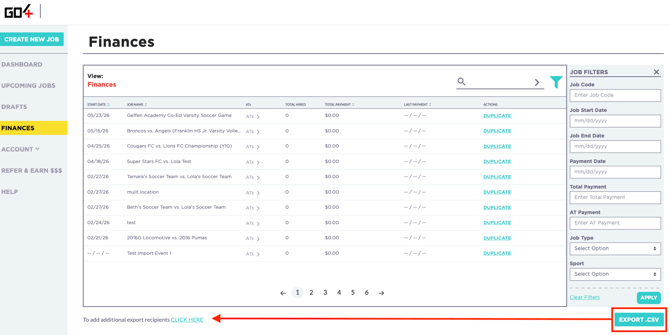
**Share Reports with Your Team**
When exporting financial data, you have the option to add additional email recipients. This allows members of your organization, such as finance teams, accountants, bookkeepers, or administrators, to automatically receive a copy of the exported report.
You may also designate contacts to receive Go4 invoices, helping ensure the appropriate individuals within your organization have visibility into billing and financial activity.
**Best Practice**
Regularly exporting financial data can make month-end and year-end reconciliation significantly easier for your accounting team.
---
### **Understanding Your Financial Report**
Your finance export includes detailed information about your events, staffing, payments, service fees, and transaction history. This information can be used for reconciliation, budgeting, accounting, and reporting purposes.
The export includes:
- Event information
- Location details
- Athletic Trainer information
- Compensation details
- Payment status and transaction history
- Go4 service fees
- Financial totals
---
### **FAQs**
**Why is the Athletic Trainer payout date different from the date I was charged?**
The date your organization is charged and the date an Athletic Trainer receives payment may differ due to payment processing timelines, banking procedures, and the payment method used to fund the transaction.
**Where can I find my organization's financial reports?**
Financial reports can be accessed through the **Finance** section of your Go4 account.
From there, you can review transaction history, payment activity, and export financial data.
**Can I export my financial data?**
Yes. Financial data can be exported directly from the Finance section of your account.
Exports can be used for budgeting, accounting reconciliation, tax preparation, and internal reporting purposes.
**Can I send finance exports to other people in my organization?**
Yes. When generating a finance export, you can add additional email recipients to receive a copy of the report.
This can be helpful for finance teams, accountants, bookkeepers, administrators, or anyone responsible for managing your organization's financial records.
**Can other members of my organization receive Go4 invoices?**
Yes. You can designate additional contacts to receive invoices and financial communications from Go4.
**What information is included in a finance export?**
Finance exports include detailed information related to:
- Events
- Shift details
- Athletic Trainers
- Compensation
- Service fees
- Payment status
- Transaction history
- Financial totals
**What is an Event Code?**
An Event Code is an optional identifier that can be used to help your organization organize and reconcile financial records.
Event Codes are only visible within reporting and export data and are not visible to Athletic Trainers.
**What is the difference between Payment Subtotal and Total Payment?**
*Payment Subtotal* represents the Athletic Trainer compensation before service fees.
*Total Payment* includes both the Athletic Trainer compensation and the applicable Go4 Service Fee.
**What does the Service Fee cover?**
The Go4 Service Fee supports:
- Access to the Go4 platform
- Job marketing and distribution
- Access to Go4's Athletic Trainer network
- Emergency Action Plan (EAP) generation
- Applicant management and hiring workflows
- Payment processing
- 1099-K reporting and handling
- Customer support and marketplace operations
**Do Athletic Trainers receive the full rate I post?**
Yes. Athletic Trainers receive 100% of the compensation rate posted by your organization.
Go4's service fee is charged separately.
**What do the different payment statuses mean?**
Common payment statuses include:
- Paid – The transaction was successfully processed.
- Succeeded – A refund was successfully processed.
Additional statuses may appear depending on the transaction lifecycle.
**What do the different payment types mean?**
- Job – Original payment for a completed shift.
- Job Modification – Additional payment for approved time worked beyond the originally scheduled shift.
- Paid Job – Manual payment issued by Go4 to correct a payment issue.
- Refund – Payment returned to the organization.
**When am I charged for a completed shift?**
Organizations are charged after services have been rendered.
Services are considered rendered when the Athletic Trainer successfully checks in through the Go4 app and completes the shift.
Payment processing typically begins approximately 24 hours after the shift ends.
**Why don't I see a charge for a recently completed shift?**
Payment processing begins after the shift is completed and the Athletic Trainer has successfully checked in.
Depending on your payment method and banking institution, processing times may vary.
**Can I see canceled shifts in my finance report?**
If a cancellation resulted in a financial transaction, fee, refund, or credit, it may appear within your financial reporting.
**How far back can I view financial transactions?**
Your Finance section provides access to historical financial activity associated with your account.
Available records may vary depending on your account history.
**What should I do if I believe a charge is incorrect?**
If you believe a charge or transaction is inaccurate, please contact Go4 Support team at [support@go4.io](mailto:support@go4.io) and provide any relevant details so our team can review the transaction.
**Who should I contact if I need help understanding my finance report?**
If you have questions about your financial reports, exports, invoices, or transactions, contact our Support team at support@go4.io and our team will be happy to assist.
- [Job Posters](https://support.go4.io/job-posters?hsLang=en-us#main-content)
- [Getting Started](https://support.go4.io/job-posters?hsLang=en-us#getting-started)
- [Hiring an Athletic Trainer](https://support.go4.io/job-posters?hsLang=en-us#hiring-an-athletic-trainer)
- [Finance and Payments](https://support.go4.io/job-posters?hsLang=en-us#finance-and-payments)
- [Athletic Trainers](https://support.go4.io/athletic-trainers?hsLang=en-us#main-content)
- [Getting Started](https://support.go4.io/athletic-trainers?hsLang=en-us#getting-started)
- [Working a Job](https://support.go4.io/athletic-trainers?hsLang=en-us#working-a-job)
- [Features](https://support.go4.io/athletic-trainers?hsLang=en-us#features)
- [Finance and Payments](https://support.go4.io/athletic-trainers?hsLang=en-us#finance-and-payments)
- [FAQs and Troubleshooting](https://support.go4.io/athletic-trainers?hsLang=en-us#faqs-and-troubleshooting)
- [Home](https://go4.io/)
- [Post a Job](https://go4.io/)
- [Work a Job](https://go4.io/)
- [About Us](https://www.go4.io/about-us/)
[](https://support.go4.io/?hsLang=en-us)
[Terms & Conditions](https://go4.io/terms-and-conditions/) | [Privacy Policy](https://go4.io/privacy-policy/)
© 2026 Go4
```json
{
"@context" : "https://schema.org",
"@type" : "VideoObject",
"contentUrl" : "https://50706065.fs1.hubspotusercontent-na1.net/hubfs/50706065/video_assets/206859911236/inherited/web_optimized.mp4",
"dateModified" : "2026-02-04T11:20:35.429Z",
"duration" : "PT1M37S",
"height" : 1080,
"name" : "Finances on the Go4 platform",
"thumbnailUrl" : "https://50706065.fs1.hubspotusercontent-na1.net/hubfs/50706065/Finances%20on%20the%20Go4%20platform.mp4/medium.jpg",
"uploadDate" : "2026-02-04T11:20:23.919Z",
"width" : 1920
}
```