
The Finance section of the Go4 app gives Athletic Trainers visibility into their earnings, payment history, pending payouts, and completed deposits.
Whether you're tracking income, reconciling bank deposits, preparing for tax season, or reviewing previous shifts, the Finance section serves as your centralized location for financial activity on Go4.
Keep Track of Your Earnings
The Finance section allows you to review pending payments, completed deposits, and historical payout information directly from the Go4 app.
Accessing Your Finance Dashboard
To view your financial information:
-
Open the Go4 app.
-
Navigate to the Finance section.
-
Review your payment history, pending payouts, and deposits.
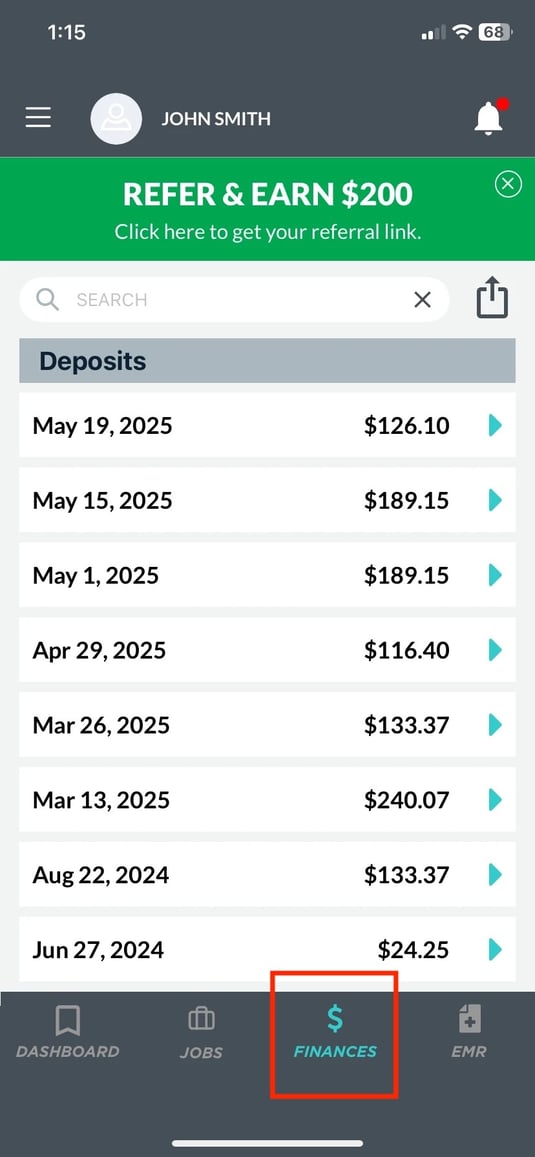
Understanding Your Financial Dashboard
The Finance section is broken into two primary areas:
Pending
The Pending section contains payments that have been initiated but have not yet been deposited into your bank account.
Examples may include:
-
Recently completed shifts
-
Shift modifications
-
Cancellation payments
-
Payments currently being processed
Deposits
The Deposits section displays Stripe payouts after funds have successfully been deposited into your bank account.
Selecting a deposit allows you to view the individual payments included within that payout.
Good to Know
Multiple completed shifts may be grouped together into a single deposit depending on timing and processing schedules.
Exporting Your Financial Data
Athletic Trainers can export financial reports directly from the Go4 app.
Exports can be useful for:
-
Personal bookkeeping
-
Income tracking
-
Expense reimbursement
-
Tax preparation
-
Financial planning
To export your finance report:
-
Navigate to the FINANCE section.
-
Select the EXPORT FINANCES.
-
A detailed CSV file will be delivered to the email address associated to your account
Understanding Payment Types
Your finance report may include several different transaction types.
Job
A standard payment for a completed shift without changes or adjustments.
Job Modification
Additional payment issued when a shift runs longer than originally scheduled and the modification is approved.
PaidJob
A manual payment created by Go4 to correct an issue with the original payment.
Examples may include:
- Missed check-ins
- Payment corrections
- Manual adjustments
Refund
A payment reversal or correction that may appear as a negative amount in your finance history. Refund transactions became visible within the finance experience to improve transparency for Athletic Trainers.
Understanding Payment Amounts
As of January 1, 2026, Athletic Trainers receive 100% of the compensation rate posted on the shift.
Go4 no longer charges Athletic Trainers a 3% payment processing fee.
100% of Your Shift Compensation
The amount shown in your finance report reflects the amount paid to you for services rendered through the platform.
FAQs
Where can I view my payment history?
Your payment history is available in the Finance section of the Go4 app.
What is the difference between Pending and Deposits?
-
Pending payments are still being processed.
-
Deposits are payments that have already been deposited into your bank account.
Why is my payment still pending?
Pending payments may still be moving through banking systems, awaiting funding, or undergoing verification.
Can I export my payment history?
Yes. Finance reports can be exported directly from the Go4 app and emailed to you for your records.
Is my finance report the same as my 1099?
No. Your finance report provides transaction history and payout information, while your 1099 is a tax document issued separately when applicable.
What is a Job Modification payment?
A Job Modification payment represents additional compensation for approved time worked beyond the originally scheduled shift.
What is a PaidJob transaction?
A PaidJob transaction is a manual payment issued by Go4 to correct or resolve a payment issue.
Does Go4 charge Athletic Trainers a payment processing fee?
No. Effective January 1, 2026, Go4 eliminated the 3% payment processing fee previously charged to Athletic Trainers.
Athletic Trainers now receive 100% of the compensation rate posted on the shift.
Why is my payment taking longer than expected?
While most payments are processed within normal timelines, delays can occur due to:
-
Weekends
-
Banking holidays
-
ACH processing times
-
Payment verification
-
Funding issues
Who should I contact if I have a payment question?
Please contact our Support Team at support@go4.io with:
-
Event name
-
Shift date
-
Organization name
-
Description of the issue
and our team will be happy to investigate!